Hosted in Switzerland. Built for data protection.
Try the demo
Guide

Install and embed Zytfenster

What kind of website do you have? With WordPress, you install a plugin and everything is included. For every other website, you upload Zytfenster to your hosting once or let it run on mine, then add the booking with a link, a button or two lines of code.

My website runs on WordPress

Upload the plugin and activate it, done. Zytfenster is included in the plugin, and you manage appointments right in the WordPress dashboard. Works with the block editor (Gutenberg), Elementor, Bricks, Beaver Builder and Divi.

To the WordPress route

Another website

Your own HTML page, a site builder like Wix, Squarespace, Jimdo or Hosttech, or no website at all: a link or button is enough, and on your own pages the whole form too.

To embedding
WordPress

Zytfenster in WordPress, step by step

The plugin brings everything: booking page, admin area and database. Nothing to upload, no folder to set up. It takes about 5 minutes.

  1. Download the plugin

    A ZIP file with Zytfenster already inside.

    Download the WordPress plugin

  2. Upload and activate

    In WordPress, under “Plugins”, “Add New”, “Upload Plugin”, choose the ZIP file and activate it. The plugin checks your hosting and stores the data safely, outside the web folder where possible.

  3. Set up in the “Termine” menu

    Name and email are already filled in. One click on “Set up”, then a checklist walks you through services, opening hours, colour and logo.

  4. Insert the booking

    In the block editor (Gutenberg), insert the “Zytfenster” block. In Elementor, Bricks, Beaver Builder or Divi, use a shortcode element with [zytfenster]. As a button: [zytfenster art="knopf"].

  5. Managing appointments

    New bookings, requests and photos appear in the WordPress dashboard under “Termine”. If you’d rather have it hosted by me, choose “Other installation” under “Settings”, “Zytfenster”.

Other websites

Where does Zytfenster run?

Without WordPress, Zytfenster needs its own place: on your hosting or on mine.

On your hosting

Free. You upload Zytfenster to your own hosting, and a setup assistant does the rest. It takes about 15 minutes. After that, everything runs at your own address, e.g. your-website.ch/termine.

Go to the guide

I’ll install it

Fixed price CHF 390. I set up Zytfenster on your hosting and build it into your website.

Request installation

Hosted by me

CHF 120 a year plus CHF 290 for setup. Zytfenster runs on my hosting at app.zytfenster.ch. You log in there, your clients book there, and you can embed it straight away.

Skip to embedding
On your hosting

Install

You need hosting with PHP 8.3 or newer and about 15 minutes. Zytfenster brings its own database, and there’s no programming involved.

  1. 1

    Download and upload

    Download the ZIP file and unpack it. You get a folder called zytfenster. Upload it to your web space using your hosting’s file manager or FTP, e.g. to public_html/termine.

    The folder name becomes part of the address. termine turns into deine-website.ch/termine.

  2. 2

    Open the address

    Open the address in your browser. Zytfenster notices that it’s new and checks your hosting: PHP version, extensions, email sending and a secure folder for the data.

    Once everything is green, enter the name of your practice or business and your email address. If your hosting is in Switzerland, tick the box for that. The booking page will then show “Data stored in Switzerland”. Then click “Install Zytfenster”.

    The setup wizard checks the hosting and asks for a name and email addressScreenshot in German; the wizard appears in your language
  3. 3

    Add the cron job

    The wizard shows you a line for the cron job. Copy it and add it in your hosting control panel under “Cron jobs”. Zytfenster uses it to send reminders, read in calendars and clear out old data.

    With most hosting providers, you’ll find cron jobs in the customer control panel. Every 10 minutes is enough.

    The wizard shows the ready-made cron job line with a copy buttonScreenshot in German; the wizard appears in your language
  4. 4

    Set up

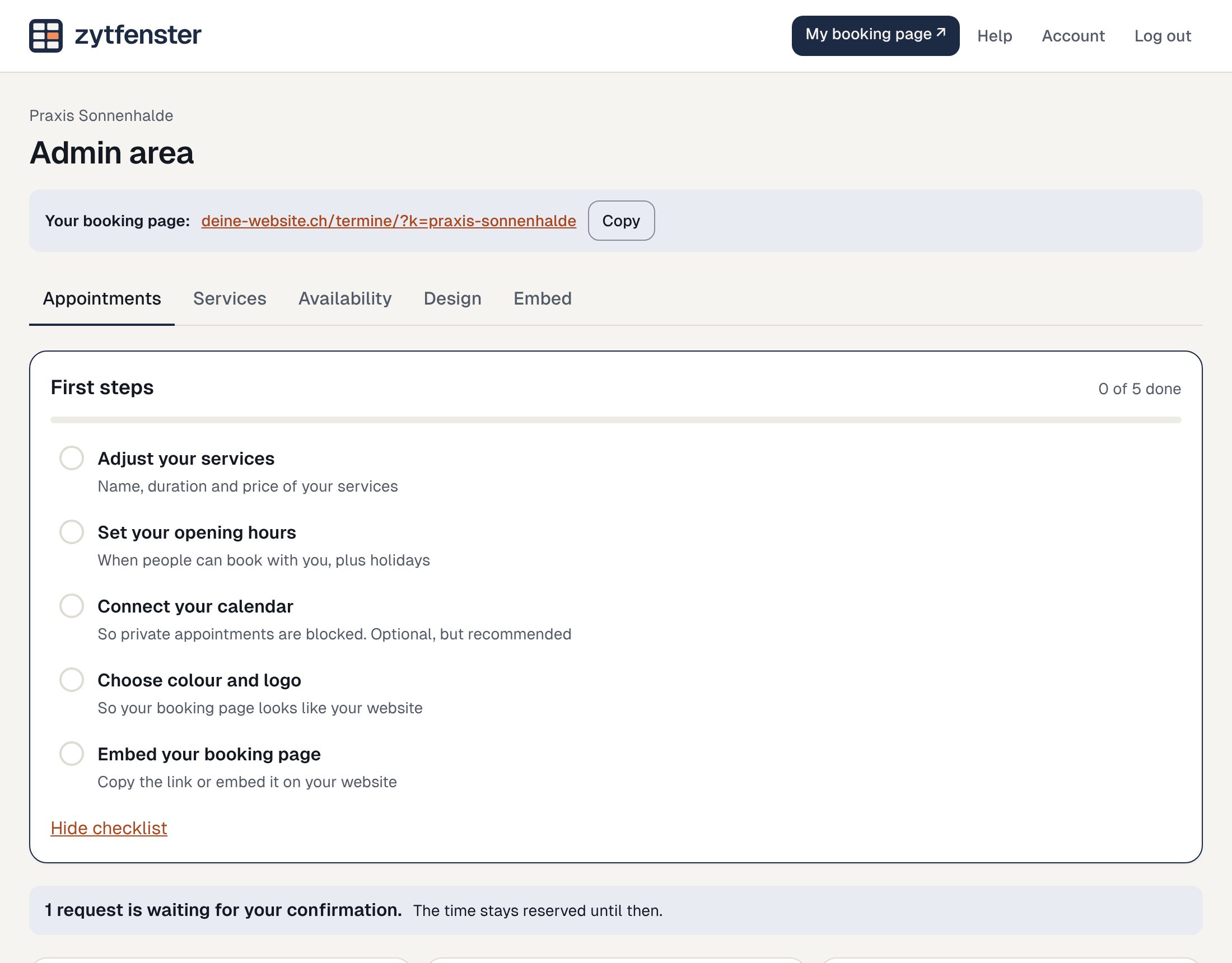
    Clicking “Go to admin” signs you in. A checklist guides you through the first steps: add your services, enter your opening hours, choose a colour and logo.

    After that, you sign in with a link sent by email. There is no password.

    The admin area with the checklist for the first steps
Other websites

Embed with a link, button or code

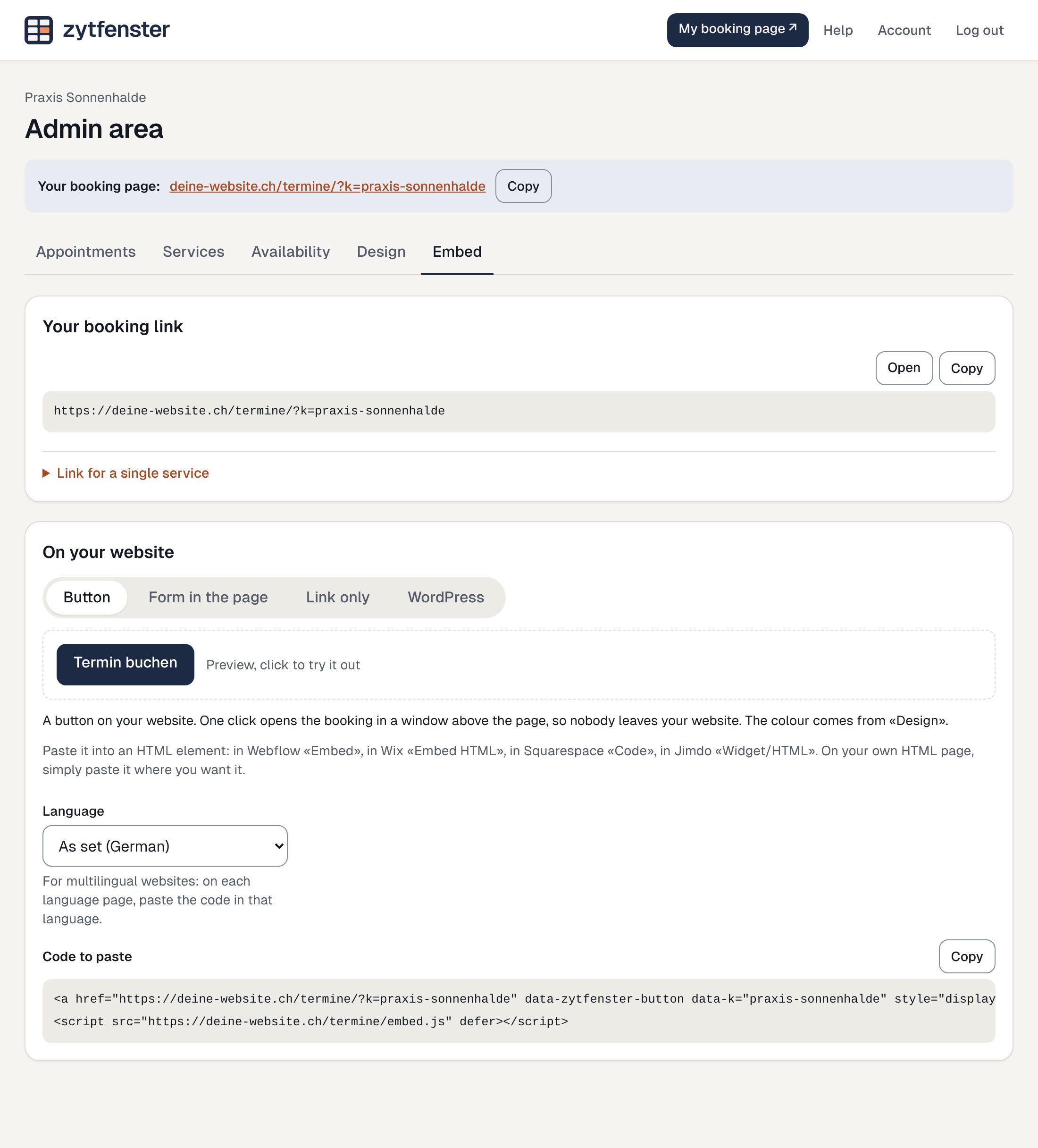
You’ll find the ready-made code with your ID in the admin area under «Embed». You can copy it there. In the examples here, deine-kennung is a placeholder.

Button with a pop-up

Paste these two lines where you want the button to appear. Change the button’s text and look however you like.

<a href="https://deine-website.ch/termine/?k=deine-kennung" data-zytfenster-button data-k="deine-kennung">Termin buchen</a>
<script src="https://deine-website.ch/termine/embed.js" defer></script>

Embedded form

The booking form adjusts its height automatically.

<div data-zytfenster data-k="deine-kennung"></div>
<script src="https://deine-website.ch/termine/embed.js" defer></script>

To show only one service, add data-angebot="Nummer". The number is listed under «Embed».

The Embed section with link, button, form and code
After installation

Updates, backups, moving

Installing an update

Download the new ZIP file and upload its files over the old ones. Leave the file inc/datapath.php as it is: it points to your data. What’s new is listed on the Roadmap.

Backup

Zytfenster makes a backup of the database every day and keeps it for 14 days. You’ll find it in the data folder under backups. Photos are deliberately left out.

Emails aren’t arriving

Almost always, the hosting is missing SPF or DKIM for the sender address. Set up both in the DNS, and confirmations and reminders will stay out of spam.

Removing Zytfenster

Delete the program folder and the data folder. That removes all appointments, photos and backups. Don’t forget the cron job.

Stuck somewhere?

I’ll install it for you

Fixed price CHF 390. I set up Zytfenster on your hosting and build it into your website.

Request installation

Support

Help with your installation costs CHF 180 an hour, billed in 15-minute increments. I fix bugs in Zytfenster itself free of charge. Just let me know.

Get in touch